Learn
Go live
Publishing puts your experience at its own address, where anyone can open it from a link or a printed code. It is the one step that makes something public, so it asks you once.
Publish
-
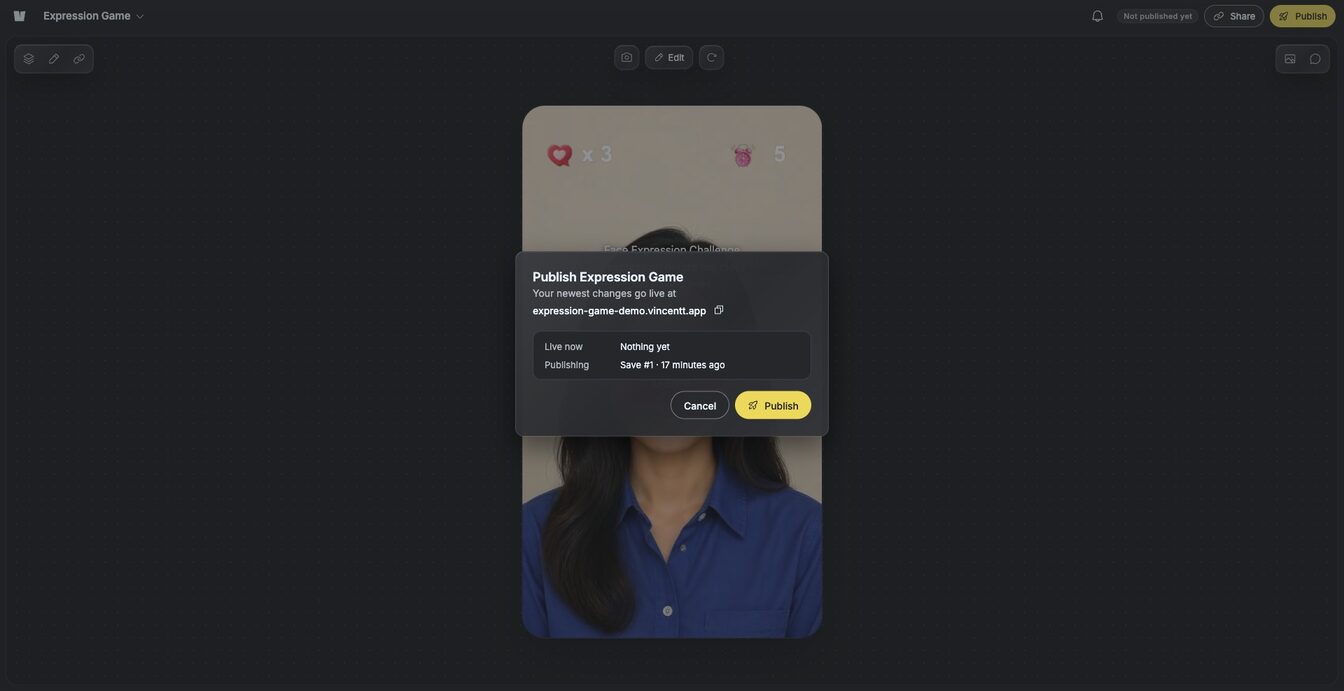
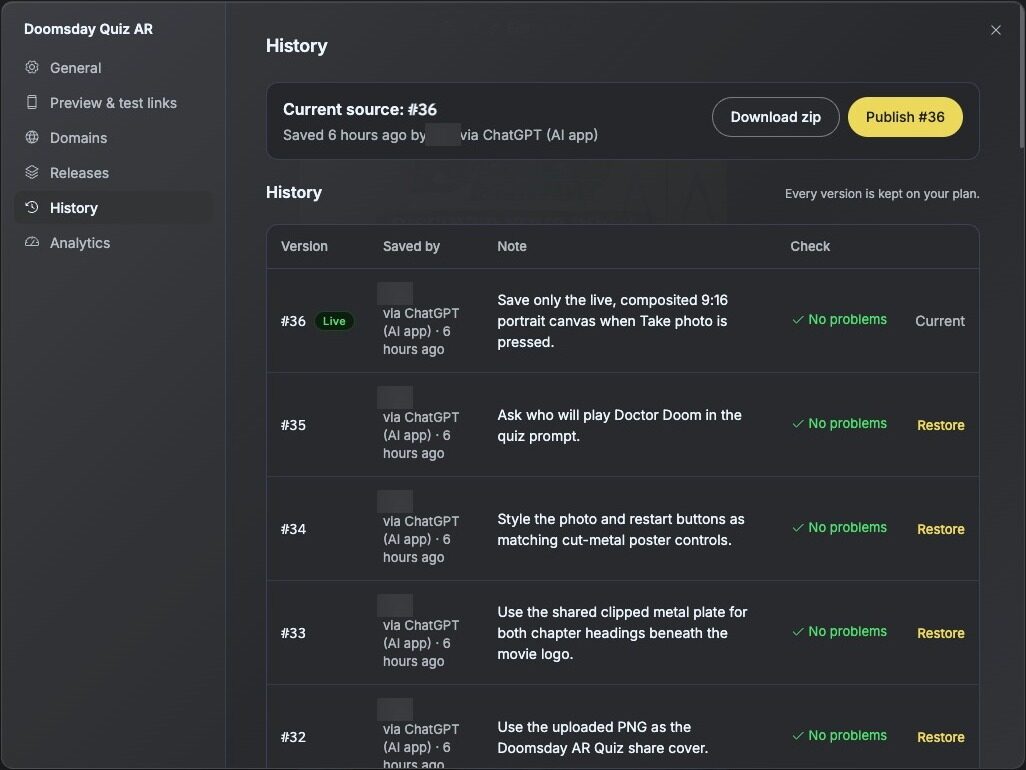
Ask your AI to publish, or press Publish in the console. The newest version that works is chosen unless you pick another; History in the project menu lists every save with Restore.
-
The first publish of a project needs your approval in the console. Your AI gives you a link to the approval page; the console shows the same confirmation. This is because the address becomes permanent at that moment.
-
Before anything ships you see what was found: the title, description and share picture, and anything that looks unfinished. These never block; they tell you what people will see.
-
Confirm. The experience is live at name.vincentt.app within moments.
Later publishes go straight through.
Versions and rollback
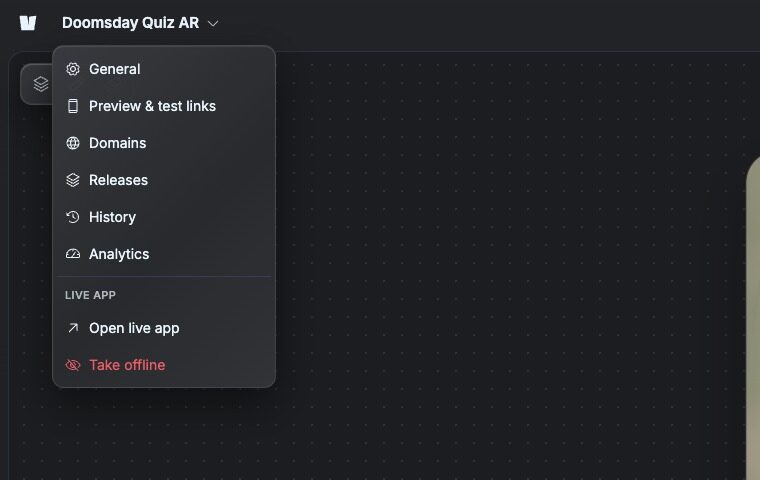
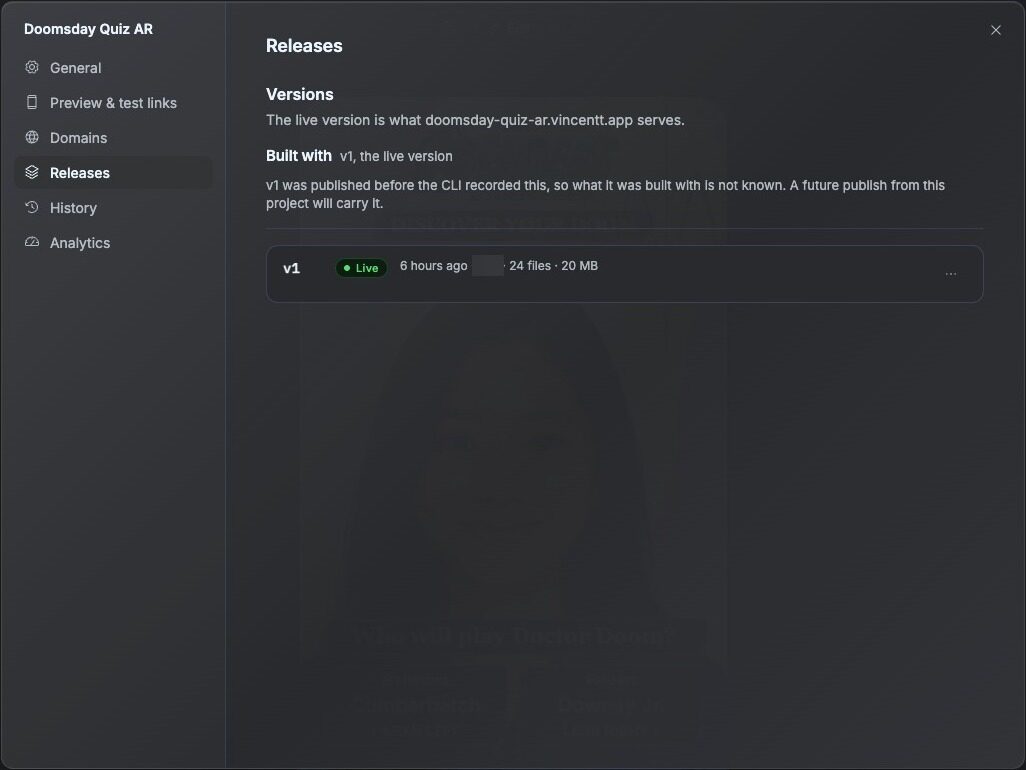
- Every publish is a release, kept forever. Releases in the project menu lists them, and exactly one is marked Live.
- Make any earlier version live again from the console in seconds. Nothing is rebuilt; the address simply points at that version.
- A rollback never changes what the next publish will be.
Taking it down
- Take offline in the project menu stops the address from serving. The project and every version stay. Publish again and it is back.
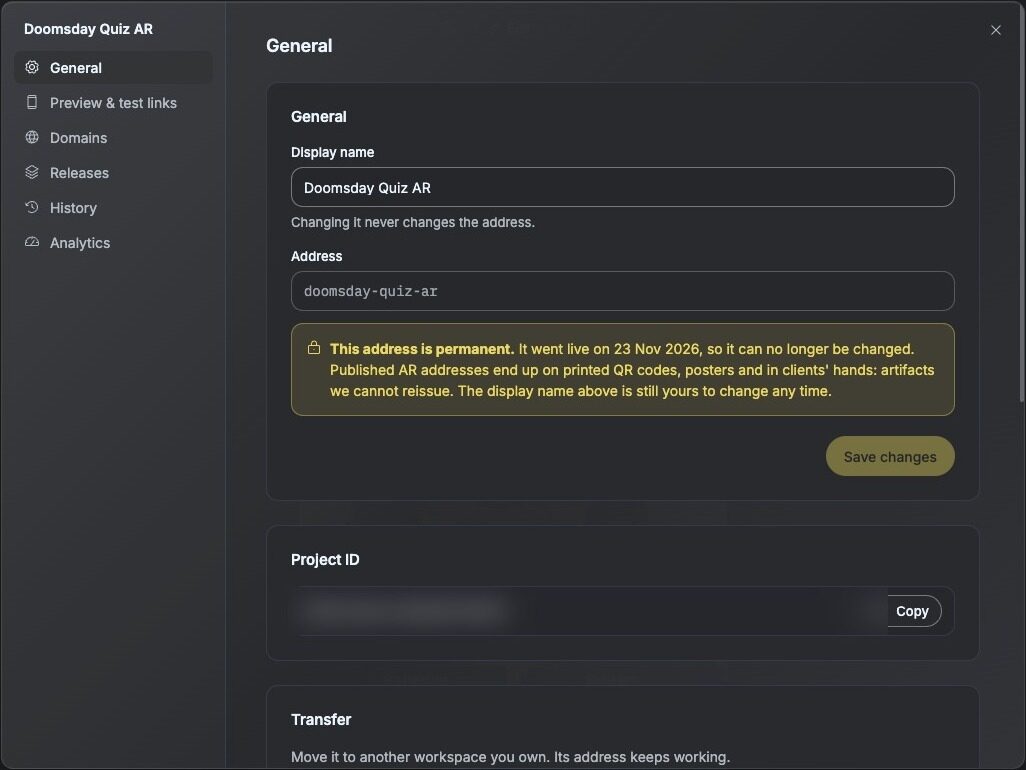
- The address is yours for good. Once an experience has been live at a name, that name is never given to anyone else.
The share card
What people see when the link lands in a chat comes from the project's cover card: title, description and picture. Set them in the console editor's Cover card panel before you publish, and edit them afterwards any time.
Your own domain
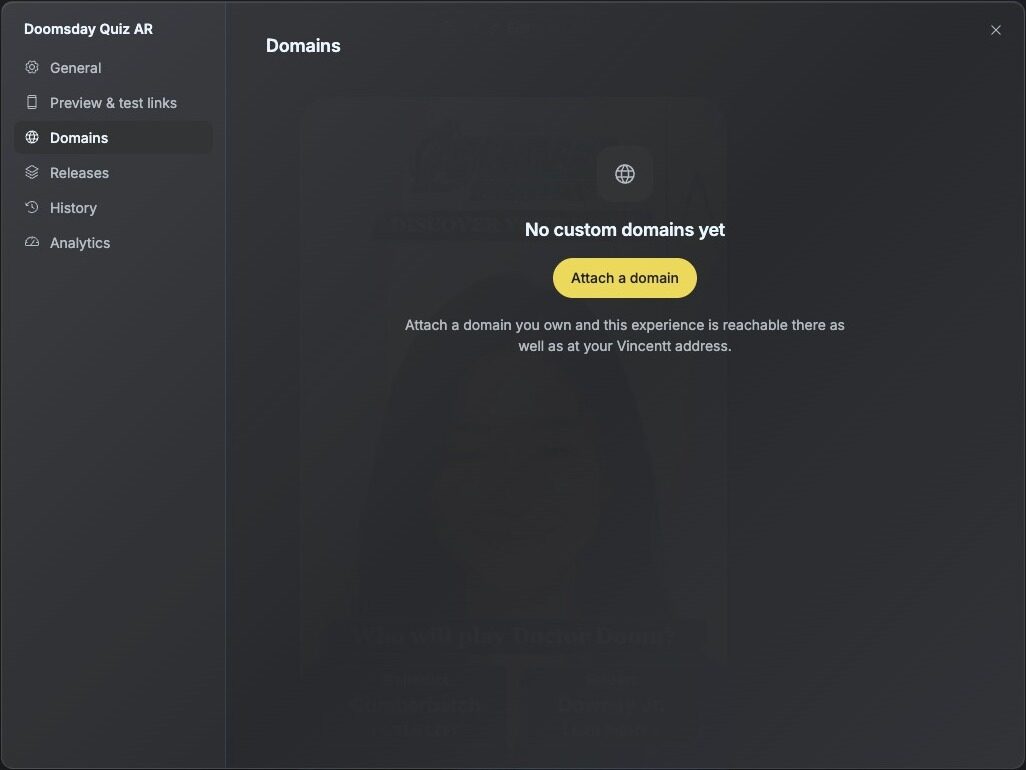
On a paid plan you can serve a published project at a domain you own, such as ar.yourbrand.com. Domains in the project menu shows the one DNS record to create at your registrar, checks it, and takes care of the certificate. Both addresses keep working.
Plans
- A free account keeps one experience live at a time. Unpublishing frees the slot. Paid plans have no limit on live experiences.
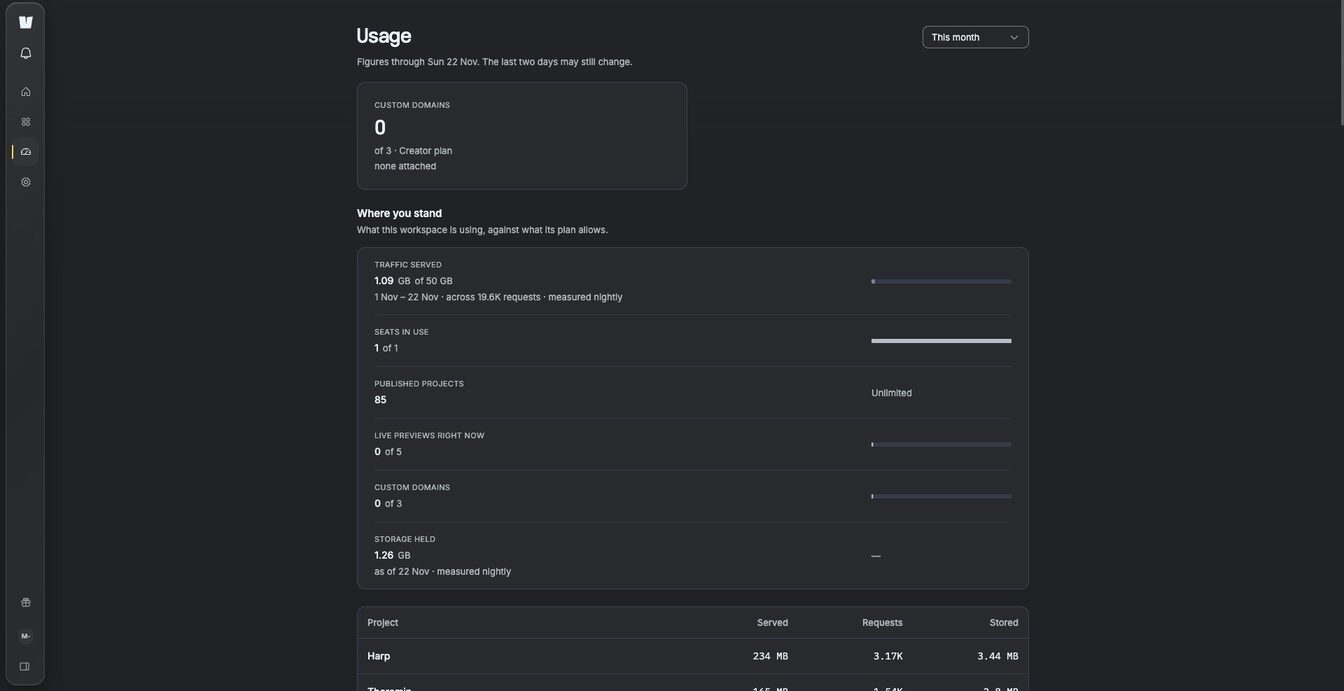
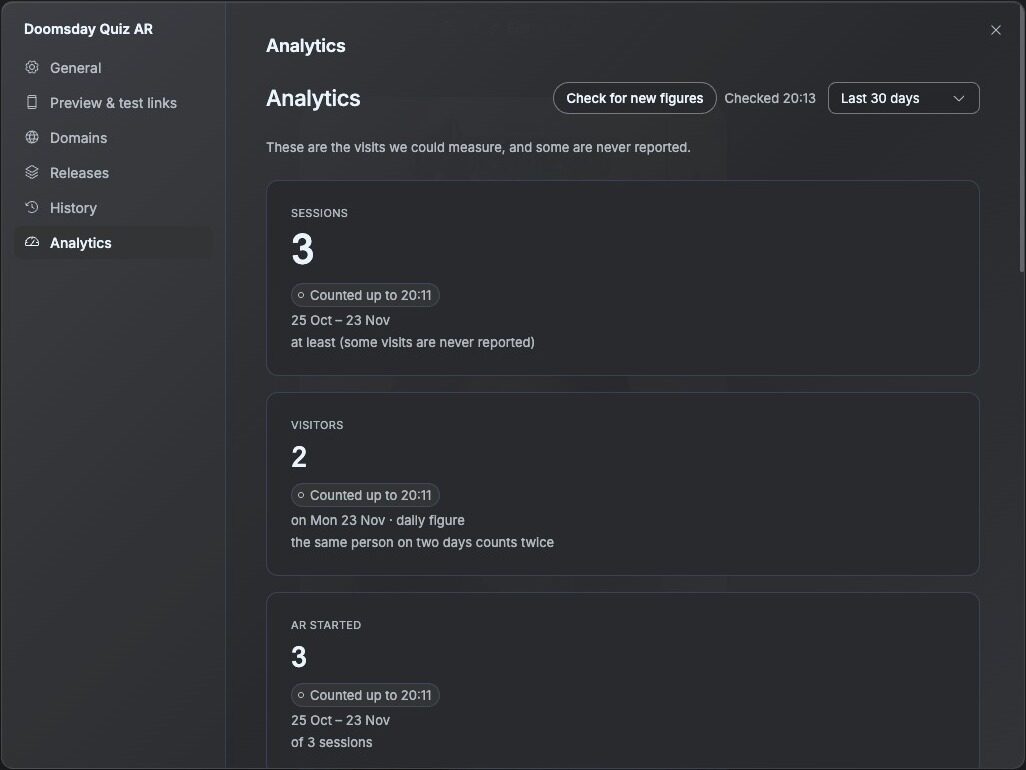
- Visits to the live experience are shown under Analytics in the project menu; workspace usage and traffic under Usage in the main menu.