Learn
Comments and feedback
Seeing what to change is easy. Explaining it is the hard part. Comments let you point at the frame instead.
Leave a comment
- Open the project in the console and press New comment in the Comments panel beside the preview.
- The preview pauses on the current frame. Draw on it, circle the thing, add an arrow.
- Write what should change and send. The comment keeps the marked picture, your words, your name and the time.
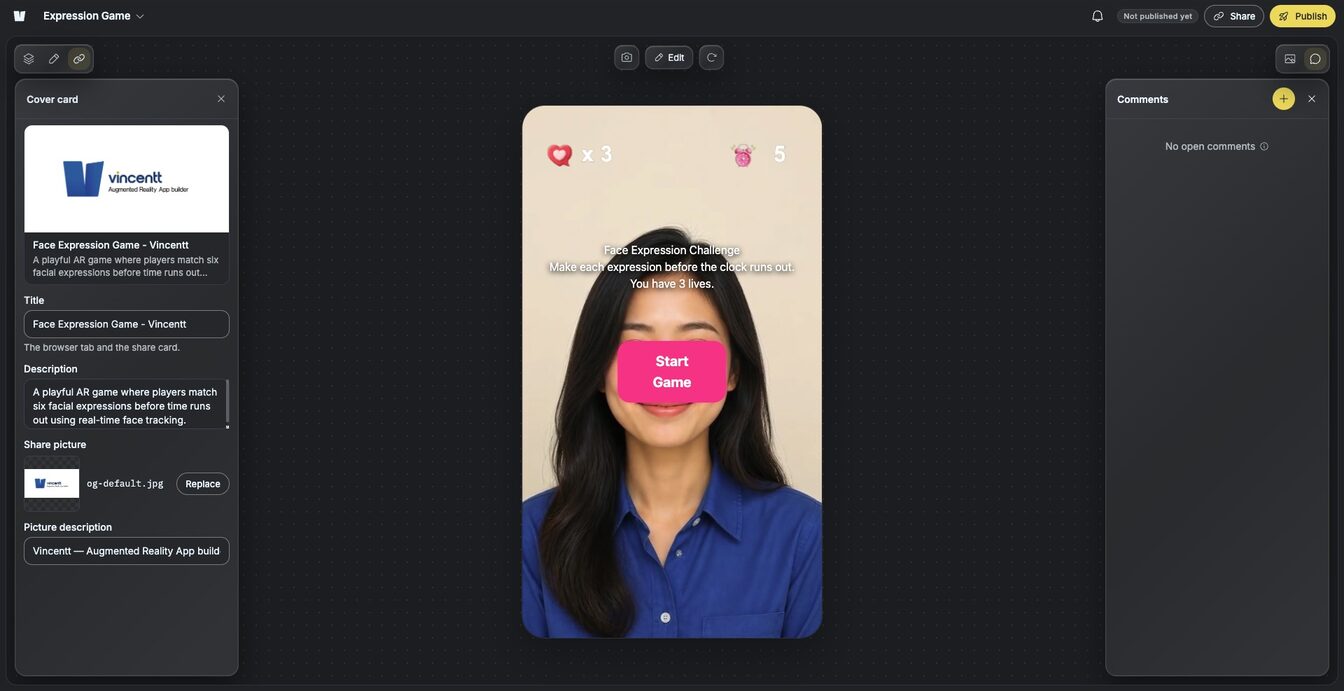
Comments belong to the project. They stay until someone deletes them, through every save and every version.
Let your AI act on them
- Tell your AI: "resolve the comments". It reads the open ones, makes the changes, and closes each with a reply saying what it did.
- To point it at one comment, press Copy for agent on that comment and paste the line into the chat.
- Not right yet? Reply under the comment and press Reopen. It is back in the open list for the next round.
- Resolved comments stay in a collapsed section so nothing is lost.
Feedback from phones
Anyone trying the preview link or a test link on a phone can press Send feedback, mark the frame and type a message. It lands in the same Comments panel, labelled "Phone tester" or "Test link", with the name they typed marked as unverified. They can send; only your workspace can read, reply and resolve.
Teammates
- Type @ in a comment or reply to mention a workspace member. They get it in their console inbox, with a link that opens the project on that comment.
- Any member can comment, reply, resolve, reopen or delete.
- Your AI can read, reply and resolve. It cannot start, reopen or delete a comment.